<?xml version="1.0" encoding="UTF-8"?>
<feed xmlns="http://www.w3.org/2005/Atom" xml:lang="">
                        <id>https://amjiddader.support-hub.io/feed/176</id>
                                <link href="https://amjiddader.support-hub.io/feed/176" rel="self"></link>
                                <title><![CDATA[BookMyCab - Start your own online cab business Uber/Ola/Careem Clone - Android Article Feed]]></title>
                    
                                <subtitle></subtitle>
                                                    <updated>2018-10-27T11:05:08+00:00</updated>
                        <entry>
            <title><![CDATA[Backend Requirements]]></title>
            <link rel="alternate" href="https://amjiddader.support-hub.io/articles/backend-requirements" />
            <id>https://amjiddader.support-hub.io/109</id>
            <author>
                <name><![CDATA[Amjid Dader]]></name>
            </author>
            <summary type="html">
                <![CDATA[<p>To use BookMyCab make sure you meet below requirements. 
</p><h3><b>BACKEND Admin Panel 
</b></h3><p><b>Recommended</b></p><p>VPS 4GB Ram 2 Cores ( up to 2000 Users)
</p><p>VPS 8GB Ram 4 Cores ( up to 5000 Users)
</p><p>Dedicated Server 4-8 Cores 16GB Ram ( unlimited users)
</p><p>SSD Storage 100GB ( if you use Amazon S3 to store files.)
</p><p>Storage 1 TB or as per your demand - 1 user utilise 10MB space a month and in 1 year 1 user need 200MB space.
</p><p>Choose OS of your choice both are fast and secure Ubuntu / CentOS 
</p><p>Import Extensions with PHP7.x OpenSSL, PDO, Mbstring, Tokenizer, JSON, CURL, Symlink, mod-rewrite.
</p><p>LAMP, Apache + PHP 7.1 + phpMyAdmin + MySQL + Redis =
</p><p>ROOT Access of your machine.
</p><p>
</p><p><b>Just Beginning
</b></p><p>VPS with 1 GB Ram any Core + some space 
</p><p>Install LAMP with MySql, phpMyAdmin, PHP7.x OpenSSL, PDO, Mbstring, Tokenizer, JSON, CURL, Symlink, mod-rewrite.
</p><p>Shell/Root Access to install composer.</p>]]>
            </summary>
                                    <updated>2018-10-23T14:19:11+00:00</updated>
        </entry>
            <entry>
            <title><![CDATA[Server Setup]]></title>
            <link rel="alternate" href="https://amjiddader.support-hub.io/articles/server-setup" />
            <id>https://amjiddader.support-hub.io/113</id>
            <author>
                <name><![CDATA[Amjid Dader]]></name>
            </author>
            <summary type="html">
                <![CDATA[<p>In this Document, we will set up a web server so we can host backend.<br />We will use 68.232.175.197 as IP address with root user. <br />This is a Clean Ubuntu 16.x Operating system.</p><p><b>STEP 1</b></p><p>log in to the server using root password using any SSH client like PUTTY.<br />Update server <br /><i>apt update -y</i></p><p>Install APACHE + VIM + WGET + FTPserver<br /><i>apt-get install apache2 vim </i>wget vsftpd<i> zip -y </i><br />You can see working Apache2 Ubuntu Default Page at http://68.232.175.197/</p><p><i><br /></i></p><p><b>STEP 2</b></p><p>Install PHP7<br />--- below commands are to add php7 into Ubuntu 16 if you are using ubuntu 18 you may not need this you can skip to step 3---</p><p><i>apt-get install software-properties-common python-software-properties <br /></i><i>add-apt-repository -y ppa:ondrej/php <br /></i><i>apt-get update </i></p><p><b>STEP 3</b></p><p>Install php7 and required extensions<br /><i>apt-get install php7.2<br />apt-get install php-pear php7.2-curl php7.2-dev php7.2-mbstring php7.2-zip php7.2-mysql php7.2-xml<br /></i>You can check PHP Version by<i> php -v</i></p><p><b>STEP 4</b></p><p>Install MySQL server you need to enter root Password for SQL make sure you note your password<br /><i>apt-get install </i>mysql<i>-</i>server -y<i> </i><br />Enter the password for ROOT MYSQL user that you can use to login to PHPMYADMIN</p><p><b>STEP 5</b></p><p>Install phpMyAdmin <br />apt-get install phpmyadmin -y <br />-- You will see popup choose <br />apache2 in popup 1<br />select YES in popup 2<br />enter a password for phpmyadmin ( you can enter the same password you entered in step 4)/<br />confirm password and hit Enter.<br />-- PHPMyAdmin cannot be accessed by default you need to edit</p><p><i>vim /etc/apache2/apache2.conf <br /></i>at the end of apache2.conf add below line ( at the end of the file)<br /><i>Include /etc/</i>phpmyadmin<i>/apache.conf </i><br />NOW RESTART APACHE <i>( systemctl restart apache2 )<br /></i>Now you can access phpmyadmin at http://68.232.175.197/phpmyadmin/</p><p><b>STEP 6</b></p><p>Enable Symblink , SSL mod rewrite .<br />edit 000-default.conf and make some changes as shown below. <br />vim /etc/apache2/sites-available/000-default.conf</p><p>Delete line Document root (line 12) it will be under email  ServerAdmin webmaster@localhost <br />and paste below code and then restart apache.</p><p>&lt;Directory /var/www/html&gt; <br />Options Indexes FollowSymLinks MultiViews <br />AllowOverride All <br />Require all granted <br />&lt;/Directory&gt;</p><p>------------ Enable SSL ------------<br />a2enmod ssl <br />-------- Enable modrewrite -------<br />a2enmod rewrite <br />--- Now restart apache ---</p><p><i>systemctl restart apache2 </i></p><p>=<br />You server is now ready to hostBookMyCab backend you can install this on ROOT and point your domain on your VPS.<br /><br />--------------------------------------------------------<br /><b>STEP 7</b></p><p>Create MYSQL User, Database.<br />Login to PHPMyAdmin at <a href="http://68.232.175.197/phpmyadmin/">http://68.232.175.197/phpmyadmin/</a><br />You have to use your IP e.g <a href="http://your-ip/phpmyadmin">http://your-ip/phpmyadmin</a></p><p>Login with user ROOT and password you created in step 5<br /><br />After logging click on User Accounts <br />Click on Create New Account. <br />Fill the field select localhost for Host Name and choose a username and password </p><p>Check  } Create a database with the same name and grant all privileges. <br />and CHECK ALL for Global privileges.<br />Click on Go -</p><p>We will use the same database details in installation.<br />Now in the next article, we will setup composer - </p><p><b><a href="https://amjiddader.support-hub.io/articles/install-composer">Go to INSTALL COMPOSER documentation </a></b></p><p><i><br /></i></p><p><i><br /><br /><br /><br /><br /><br /></i></p><p><br /></p><p><br /></p>]]>
            </summary>
                                    <updated>2018-10-23T19:04:19+00:00</updated>
        </entry>
            <entry>
            <title><![CDATA[Install Composer]]></title>
            <link rel="alternate" href="https://amjiddader.support-hub.io/articles/install-composer" />
            <id>https://amjiddader.support-hub.io/114</id>
            <author>
                <name><![CDATA[Amjid Dader]]></name>
            </author>
            <summary type="html">
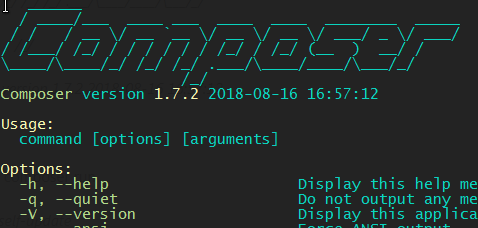
                <![CDATA[<p>Before instaling COMPOSER make sure you have completed <a href="https://amjiddader.support-hub.io/articles/server-setup" target="_blank" rel="noreferrer noopener">SERVER SETUP - Click here to know more.</a></p><p><br /></p><p>STEP 1 </p><p>Run below command from root directort to Install the composer globally.</p><p><i>curl -sS https://getcomposer.org/installer | sudo php -- --install-dir=/usr/local/bin --filename=composer </i></p><p>
</p><p>See if it works run command <i>composer you will get composer welcome screen.</i></p><p></p><p><img src="https://support-hub--assets.s3.eu-west-2.amazonaws.com/assets/92/images/wW3jCXAhZg5eCk75Wd2vEXkiHPGLkrByNUmaqzv0.png" style="width:50%;" alt="wW3jCXAhZg5eCk75Wd2vEXkiHPGLkrByNUmaqzv0.png" /><i><br /></i></p><p><i>Composer version 1.7.2 2018-08-16 16:57:12<br /></i></p><p><i><br /></i>To update composer run <br /><i>composer self-update<br /><br /></i></p><p><b>Now install backend.</b></p><p> </p><p><i><br /></i></p>]]>
            </summary>
                                    <updated>2018-10-23T19:11:39+00:00</updated>
        </entry>
            <entry>
            <title><![CDATA[Backend Setup]]></title>
            <link rel="alternate" href="https://amjiddader.support-hub.io/articles/backend-setup" />
            <id>https://amjiddader.support-hub.io/118</id>
            <author>
                <name><![CDATA[Amjid Dader]]></name>
            </author>
            <summary type="html">
                <![CDATA[<p><b>Installing BOOKMYCAB backend on VPS, Cpanel and Plesk are same but make sure you have installed composer. </b></p><p>
</p><p>Note: we will install in main domain i.e sourcecanyon.com</p><p>Note: I am using Plesk Web Admin SE - Paths may be different in your installation.</p><p>---------------------</p><p><b>Step 1 - Upload code to the server. </b></p><p>
</p><p>Use FTP or Inbuild file manager and upload backend to a server in zip file i.e bmc.zip</p><p>on vps got to root folder i.e cd/var/www/html -- and unzip bmc.zip</p><p>On Panel click on bmc.zip and extract make sure files .env in root i.e public_html / httpdocs</p><p>
</p><p><b>Step 2 - Setup .env file - </b></p><p>It is easy to understand and setup .env file - change things accordingly like</p><p>APP_URL=https://sourcecanyon.com ( make sure you have installed SSL -</p><p>DB_DATABASE, DB_USERNAME, DB_PASSWORD ( make sure you have already created the database)</p><p>You can fill other information like Google firebase key maps keys and redis if you use redis.</p><p>
</p><p><b>Step 3 - Run commands for composer and file permission. </b></p><p>Note we are: /var/www/vhosts/sourcecanyon.com/httpdocs/ so our root is httpdocs &amp; we are in root ( httpdocs) run below commands.</p><p>
</p><p>C1- <i>chmod 777 -R storage/</i></p><p>C2-<i> chmod 777 -R public</i></p><p>C3- <i>chmod 777 -R bootstrap</i></p><p>C4- <i>composer install // it will Install composer</i></p><p>C4- <i>php artisan key:generate</i></p><p>C5-<i> php artisan migrate --seed</i></p><p>C6-<i> php artisan passport:install </i>( it will install passport that you have to use in your Android apps/)</p><p>C7- <i>php artisan storage:link</i> ( this command is very complicated it depends which server you are using and which file path /storage folder and what are permission - which operating system you are using.</p><p>I suggest you search google or StackOverflow for an answer.</p><p>This command is to link /storage in / public folder where everything uploaded and stored after</p><p>running this command check /public folder you will see a folder will link icon which means your server is working fine. and if you see a file in public. named storage you need to fix.</p><p>Configuration for this function is filesystem in config/filesystem.php -</p><p>C8- Use AMAZON S3 instead of your own server //</p><p>Before running command C7 - edit config/filesystem.php and change storage type to S3 from LOCAL</p><p>at the bottom of file uncomment and add your Amazon S3 details . and run the command C7</p><p>
</p><p>C8- Change permission of OAuth keys that you have generated in C6 they are used to login and signup.</p><p>permission needs to be 644 -/ this file is stored in the storage folder you have to change permissions of 2 files</p><p>
</p><p><i>chmod 600 storage/oauth-public.key </i></p><p><i>chmod 600 storage/oauth-private.key </i></p><p>
</p><p>Now your system is ready to go.</p><p>
</p><p>
</p><p>
</p><p>
</p><p>
</p><p>
</p><p>
</p><p><br /></p>]]>
            </summary>
                                    <updated>2018-10-27T11:05:08+00:00</updated>
        </entry>
    </feed>